This is part of an ELC Tech Network
If you have been following my tutorials, you know that we have been working primarily with UITableViews. This is mostly because SO many applications can be developed using this simple control. This final UITableView tutorial will be taking all of the skills learned from previous tutorials, putting them all together, and adding SQLite to create a prioritized To-Do list. I will also be showing you how to add multiple columns to your table cells and we will be exploring some of the other controls that the iPhone has to offer. What good would the tutorials be if we didn’t use them to create something useful.
I will move a little faster in this tutorial while still explaining the new stuff in detail. I will assume that you have completed the fruits tutorial and it’s prerequisites.
This tutorial will be a multipart series as it will be a little longer than my previous ones. In this first tutorial, you will learn:
- Create a NavigationBased Application
- Create a Database
- Add the Database to Your Project
- Add the SQLite3 Framework
- Create a Todo Class Object
- Initialize the Database
So let’s get started…
Open up X-Code and Select File->New Project… Select Navigation-Based Application and click Choose…

Name your project todo. Now let’s create the todo database that we will be using. Open up the Terminal application on your Mac. This is located in Applications > Utilities.
If you have installed XCode, you should have mysqlite3 already on your computer. To check this, type:
sqlite3 into the Terminal and sqlite3 should start. Type .quit to exit. If sqlite3 is not installed, install all of the XTools from your Mac Installation Disk.
Now that the terminal is open let’s create the database. This is done with the command:
sqlite3 todo.sqlite
SQLite3 will now start and load the todo.sqlite database. By default the database is empty and contains no tables. If you need a refresher on the basics of SQL databases Since our application is fairly simple, we only need to create one table. We will create a table called todo by typing the following statement:
CREATE TABLE todo(pk INTEGER PRIMARY KEY, text VARCHAR(25), priority INTEGER, complete BOOLEAN);
One thing to note here is the pk field. It is the primary key of the table. This adds functionality such that every time a row is added to the database, it auto-increments this field. This will be a unique identifier to identify each row. All of the other fields should be fairly self explanitory.
Now that our table has been created, let’s add some data. We will eventually be adding todo items within our app, but for now we will add some defaults. Type the following commands below.
INSERT INTO todo(text,priority,complete) VALUES('Take out the trash',3,0);

          INSERT INTO todo(text,priority,complete) VALUES('Do Computer Science homework',1,0);

          INSERT INTO todo(text,priority,complete) VALUES('Learn Objective C',1,0);

          INSERT INTO todo(text,priority,complete) VALUES('DIGG this tutorial',2,0);
You can add as many todo items as you would like. For this tutorial, make sure you enter a priority between 1 and 3 (You’ll see why later). Now our database has been created and populated let’s exit out of SQLite3. Do this by typing .quit. Your terminal window should look something like this.
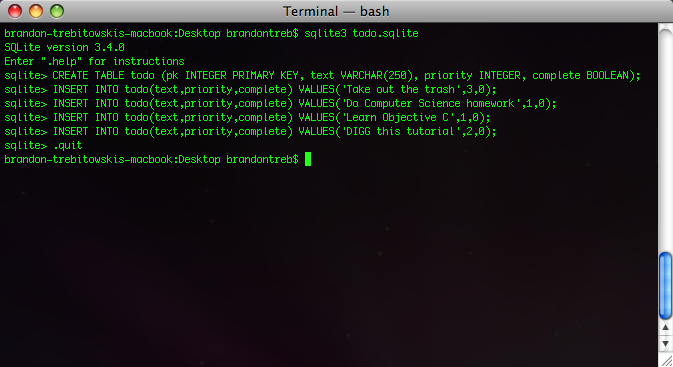
Now go back to XCode. Do a Control-Click (right click) on the folder named Resources. Click Add -> Existing Files… and browse to your todo.sqlite file and click Add. It will then prompt you with a screen like this.

Make sure you check the box that says Copy items into destination group’s folder (if needed). You should now see the todo.sqlite file inside of the resource folder.

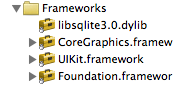
Now that we have added the database, we need to load the Objective C libraries so we can use it. Do a control-click (right click) on the Frameworks folder. Click Add -> Existing Frameworks. Now this part is a little strange. It has been my experience that these libraries are not in the same place on all machines. So in the search bar type in libsqlite3. The file we are looking for is called libsqlite3.0.dylib. This may pull up multiple files as OSX has it’s own versions of this file. Just click on the largest of the files that show up and click Add. As you can see, mine is about 1.7 MB.

Now it should add the framework and your directory will look something like this:
We need to create an object to hold our todo information. We will eventually be making an array of these objects to populate a UITableView. Go ahead and click File -> New File… Select NSObject Subclass and click Next.
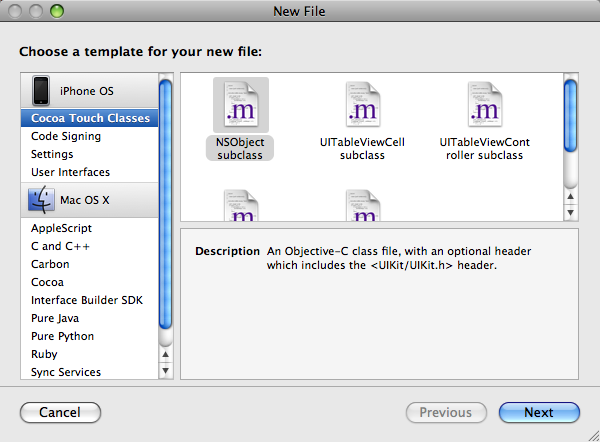
Name this object todo.m and check the box that says Also create “Todo.h” and click Finish.

Open up todo.h and add the following code.
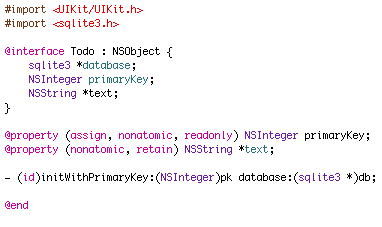
We see some new things here…First, there is a variable of type sqlite3 called database. This will be a reference to the applications database and will allow the todo object to communicate with it. Make sure you add a #import<sqlite3.h> in your imports.
Next, we see a primary key. Notice that in the property declaration it has the keywords assign and readonly. This tells the compiler that this variable, once assiged, can not be changed again. This is good since each todo will be uniquely identified by this variable.
Also, I have declared a method called initWithPrimaryKey. This will be the contstructor for this object. It takes an integer to assign as the primary key and an sqlite3 object to use as the database reference.
Let’s implement this method…Open up todo.m and add the following code.

Advertisement
This entry was posted in Tutorials and tagged Intermediate, iphone programming, iphone tutorial, SQLite, uitableview, xcode. Bookmark the permalink. Post a comment or leave a trackback: Trackback URL.
175 Comments
Cannot find libsqlite3.0.dylib in my mac! Where can I find it?
Cannot find libsqlite3.0.dylib in my mac! Where can I find it?
Check on this path—>
/Developer/Platforms/iPhoneSimulator.platform/Developer/SDKs/iPhoneSilumator3.0.sdk/usr/lib and choose the file libsqlite3.dylib:
hi please tell me why the code (iPhone Programming Tutorial – Creating a ToDo List Using SQLite Part 1) don’t run on Simulator – 3.1.2 how fix thix error. thanks very much
Hey Brandon!
I have the same problem as a few have and no one gave us an answer. In todoAppDelegate.m, I have an error with :
Todo *td = [[Todo alloc]…
‘Todo undeclared’
‘td undeclared’
Can you help us out? Thanks!
Hi Frank,
Did you fix this error
I am getting same problem…..:(
Thanks
just change Todo into todo and next line must contain “todos”…u vil surli get answer …i got dude
I had the same problem. I had my todo classes named : todo.h and todo.m instand of Todo.h and Todo.m. Not it’s fully working.
Be carefull with the cases !
Never pick a framework based on “whichever 1 is the biggest… must be the correct one”.
Ugh.
Are you kidding me?????
Pick the *POINTER* file… and it will *ALWAYS* point you to the correct one.
Duh.
> todo.h and todo.m instand (sic) of Todo.h and Todo.m
The case of the filenames *NEVER* makes any difference.
Hi Brandon,
Nice tutorial. I’m working on an application and I populated data in the DB from my within my application internally, when I was building it… I didn’t think about using SQLite3 shell tools to do this.
The new core-data datamodel should make this easier to do now. This tutorial looks like it was built for an older version of iPhone OS.
Either way … this is a great, “in plain english” tutorial… Thanks for posting it.
We need more in “common speak” lessons for this kind of geeky goodness.
Take it easy,
Jay at api documentation dot com
Perfect. I was looking for the mechanics (not a fluffy wrapper of Apple’s Doc) and you delivered. I found a few minor style issues, but nothing technically wrong. I agree with Jay’s remarks.
BTW – I just noticed that this is you, Brandon. Your tutorial on twitter was equally helpful! You are already in my favs list, but I will continue to props.
P.S. I recall that you are writing a book. How is it coming along? Do you need any reviewers? I look forward to purchasing a copy when it is published.
“and it’s prerequisites” != “and its prerequisites”
Go back to school.
I like
code
Hii I m using xcode 2.0 so there is more errors to make this program.
Will u please help me to solve that problems????
are the codes downloadable or at least able to copy and paste? =)
Great tutorial btw!
Thanks this has been a great article, we are staring offering Iphone services in the next few months and really enjoyed this post.
just going through all your tutorials and thought i’d thank you for putting these up.
they are very easy to follow and i do 1 an evening (don’t have much time)
thanks again,
tom
the discription about each and every important statements is really amaizing …
thanks …
Thanks a lot…
Thanks so much, this was a fantastic tutorial for learning to use SQLite.
I am having 1 issue when reading in a string in the DB that contains a ‘ single quote.
I have looked at the DB and it is in there (i.e don’t be tense) but when I read it in:
self.name = [NSString stringWIthUTF8String:(char *)sqlite3_column_text(init_statement, 1)];
The string no longer contain the ‘ and displays dont be tense, once it is read in.
I have Googled this and have not found any solutions.
Can anyone help?
Much appreciated.
Thanks!
Brian
I hope you happy and wish you good luck!
thankssssss
Very helpful tutorial! You should make a tutorial on how to update your database after you reorder your table cells.
Thanks!
16 Trackbacks