This is part of an ELC Tech Network
The goal of this tutorial is to show you how to populate a UITableView with data from an array of objects. This will be the building block to display XML data as well as SQL data.


The theme of this application will be fruit. We will create an array of “fruit” objects that have some additional information besides the name. We will populate a UITableView with the names of the fruits. When the user selects a fruit from the list, the view will transition to another one and display specific details about that fruit.
I will try to be as detailed as possible however it would be useful if you have completed the following tutorials as I will use concepts from each of them:
In this tutorial you will learn:
- Create a Navigation-Based Application
- Create a New Fruit Class Object
- Create and Populate an NSArray
- Add a New View To Your Project
- Connect The View To Code
- Populate A UITableView With Object Data
- Transition To New Views And Show Data Based On The Row Selected
Open up X-Code and Select File->New Project… Select Navigation-Based Application and click Choose…
Name your project Fruit.
We are going to create our “fruit” objects that will be used in the application. If you are not too familiar with object oriented programming…. That tutorial would be a little too huge for me to write.
Click on File -> New File… The object we are creating will inherit from NSObject, so select NSObject Subclass and click Next.

The next screen will ask you to name it. Go ahead and name it “Fruit” and make sure that “Also create Fruit.h” is checked. It should look like the screen below. Then, click Finish.

Now, we are going to define the properties of a “Fruit” object. For this application a fruit will have a name and a description. Open Fruit.h and add the following code:

We have created the properties needed to represent our fruit. There is one line that you may be unfamiliar with. The line -(id)initWithName:(NSString*)n description:(NSString *)desc; is a definition for a function. This function will be called to initialize a Fruit object. All NSObjects have an init method, but we want to create our own so that we can pass in a name and description when the object is created.
Open up Fruit.m and add the following code:

Here we implement the initWithName method. The code here seems pretty straight forward. We are basically setting our local copies of name and description to the arguments passed to this method. The important thing to notice here is the return self line. This is crucial for using this method as a constructor. It allows this function to return the newly created instance of a fruit object.
Next, we are going to set the title of our main view. This is necessary to create a back button when transitioning between views. Open up RootViewController.m…In the viewDidLoad method, add the following code:
We are setting the title property of the RootViewController object to the string “Fruits”. Also, be sure to add the #import “Fruit.h” line at the top to include the fruit object in our project as well as @synthesize fruitView to add the “getter” and “setter” methods.
Next, we are going to create an array of fruit objects. Open up FruitAppDelegate.h and add the following code:

All we are really adding here is an NSMutableArray property. I used NSMutableArray instead of NSArray because it has a few more methods making it more flexible.
Now, open up FruitAppDelegate.m and add @synthesize fruits to the top. This is so other objects will have access to the fruits array. Also, be sure to include the import statement for Fruit.h.
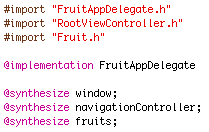
Now add the following code to the applicationDidFinishLaunching method.

What we are doing here in the 1st three lines is creating new instances of a fruit object. Notice that instead of calling init, we are calling the initWithName method that we created. This is allowing us to pass in a name and a description to each of the fruits.
The next line [self.fruits = [[NSMutableArray alloc] initWithObjects:apple,orange,watermelon,nil]; builds a new array from the objects we just created. It is important to pass in nil as the last argument in an NSMutableArray. It will not work unless you remember this.
Now we are going to create the view that will be displayed when the user selects a fruit. Double click on any one of your .xib files to open up Interface Builder.

Click File -> New and select view and click choose.
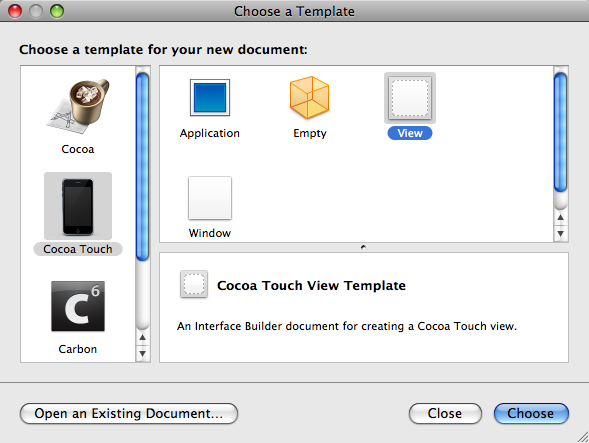
You should now see the new view (it will be blank) and the objects associated with it. We need some sort of text field to display the description of the fruit. For this tutorial I have chosen a UITextView as opposed to a UITextField. This is because a UITextView is multi-line and is great for displaying more than one line of text. So, go ahead and drag it on to your view. Your view window should now look like this:

Now click File -> Save. One important thing to keep in mind is to make sure you are saving it in the current project’s directory. It seems that every time I add a view to a project, the default directory is not my project’s directory. Name this file FruitViewController and click Save.
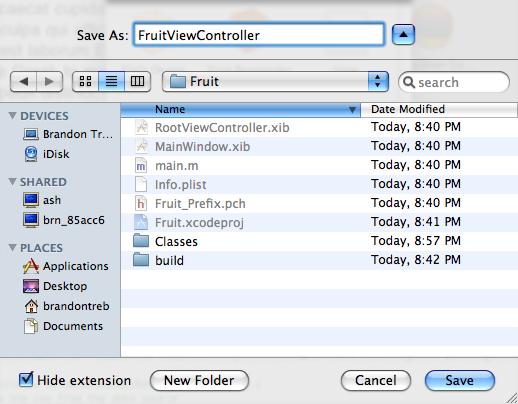
Another window should show up after you click save. It is asking you if you want to add this view to your project. Just check the box net to Fruit ,click Add, and close Interface Builder.

Close Interface Builder and go back to X-Code.
We need to create a ViewController to handle our View. Click File -> New File… Select UIViewController subclass and click Next.

Name this file FruitViewController.m and check the box that says “Also create “FruitViewController.h” . Click Finish.
Advertisement
This entry was posted in Tutorials and tagged beginner, iphone programming, nsarray, tutorial, uitableview, xcode. Bookmark the permalink. Post a comment or leave a trackback: Trackback URL.
288 Comments
Thx alot.
but I still have a question. If I have a human array contains male and female on my first page and when I click on the male array I want somemale’s name like Peter, Tom, John shown on the second screen and when I click on one of those male’s name I can see the a list hobby of individual, can I do that? Is that possible?
Thank you for these tutorials, but if i may suggest something. These tutorials seem to be just getting me to copy and paste code. I think people would better learn if a breakdown of what each line of code does. This is what I have found helps me learn MUCH better on other tutorials. Of course this is my own opinion. Just thought i may suggest.
Thanks again.
This site would actually be useful if it would:
1. Stop putting code fragments in tiny/unreadable PNG files… that you have to click on… and you STILL can’t cut/paste or use them. (Just put them in a standard textarea.)
2. Actually have a PRINT button.
Duh.
I would suggest that you will learn much more if you enter the code, not copying and pasting. You might as well just download the final project and run it, well almost
It is really sad when people make demands and they aren’t even being asked to pay for this developer’s service to the developer community. Learn to be just a little humble people.
Bonnie
You are so unbelievable selfish. Someone has spend time and considerable effort to help the community and there you are being a complete arse. I for one am shocked by your comments. Do you also think a random person should be summonsed to peel your grapes for you???
Hi
Please modify the tutorial by adding pictures to it. Waiting for the next tutorial.
thanks in advance
Viki
The best tutorial on UITableView and UINavigationController ever! Thank you very much!
Question about importing:
I saw that Fruit.h has been imported in both RootViewController.m and FruitAppDelegate.m – since FruitAppDelegate has been imported in RootViewController (and viceversa), shouldn’t it be enough to import Fruit.h only in one of those 2 files?
Thank you for any help! (And thanks for these tutorials, they’re great.)
This is such a good tutoriall for beginner and student like me
i got problem when i combine this project with my own project.
My project seems like this, i created an application with multiviews app. From one of the views, i have some buttons and one button that i want to connect to next view which is as example shown in this example. I copied all codes in FruitsViewAppDelegate into my project AppDelegate, being like this:
—-
- (void)applicationDidFinishLaunching:(UIApplication *)application{ {
// Override point for customization after application launch
[window makeKeyAndVisible];
FirstViewController *oView =[[FirstViewController alloc] initWithNibName:@”FirstViewController” bundle:nil];
self.firstView =oView;
[window addSubview: firstView.view];
// [window addSubview: nTraining.view];
[oView release];
}
{
Info *apple = [[Info alloc] initWithName:@”Course Benefit” description:@”The aim of this IPv6 training program is to give in depth information on the transition from IPv4 to IPv6 and expose the participants on the technical expertise needed in the deployment of IPv6 in the organizations network while CNP6 course concentrates in porting IPv4 based applications to IPv6 and writing IPv6 based applications.”];
Info *orange = [[Info alloc] initWithName:@”Who should attend?” description:@”CNE6 is ideal for network administrators, network support personnel, network designers, networking consultants, IT managers and directors. CNP6 is ideal for network programmers, network designers, networking consultants, IT managers and directors. “];
Info *watermelon = [[Info alloc] initWithName:@”Training Approach” description:@”Instructor – Led Training: Set in an interactive classroom environment, the instructor will introduce concepts and guide students with detailed explanations and interesting examples to meet the student’s expectation and requirements and at the same time keep the students engaged. Hands – On Lab: Step by step hand – on labs with detailed instructions and guide are provided to reinforce all key concepts. It allows the student to reinforce concepts by performing the tasks they have just learned. “];
NSMutableArray *fruitArray = [[NSMutableArray alloc] initWithObjects:apple,orange,watermelon,nil];
self.fruits = fruitArray;
[fruitArray release];
// Configure and show the window
// [window1 addSubview: info.view];
[window1 addSubview:[navigationController view]];
[window1 makeKeyAndVisible];}
}
—————————————————-
all those RootViewController i copied also with Fruit.h.
The project was sucessful without any errors.
The window with table is shown, but when i want to click to one of the rows, nothing happened.
Can u help me
Nice Tut! Thanx a lot..!!
There is a major fault with this code. It does not work. If you key this is exactly the app will crash the simulator. If you download the code and examine it you can see there are extra section in the downloaded code around awakening NIB files that is not in this version and it runs on.
I got it to work fine. One change: The author names the view “FruitViewController.xib” which I think is misleading since the controller is named the same name. I called it FruitUIView since the view is not a controller.
You have a point that it seems misleading, Rob. But the standard way is to define the nib file to be the same as it’s controller. So that you don’t get lost when you have multiple nibs.
Подбор текстов хороший удачный, помещу сайт в избранное.
Will be great if you continue this tutorial with a RSS parse from a XML file…. (maybe a news paper or somthing)
Brandon,
Thanks for the great tutorial. As someone who hasn’t programmed in years and is just learning object oriented programming on iPhone, your tutorials are the most complete I’ve found. I’m currently about half way through the Apple Dev Intro vids. Great stuff there. Don’t sweat the comments about having to type the code in. Typing the code in does teach two important things. First, you don’t really know the syntax of a language until you have to type it in over and over again. Of course, the basic syntax comes quickly, but thankfully XCode goes a long way in helping avoid unnecessary typing. Second, the fact of the matter is that typing in the code WILL cause several syntax errors that you will get to find when you compile/run. While this may be a pain in the butt, it’s invaluable in your education learning out each part of the system works.
Thanks again. BTW, I’m glad I’m not the first one to notice you need to release each fruit object you make after you put them together into the array in FruitAppDelegate.m.
The Blue Lion
Thanks for this great guide!
I’m running on the latest version of XCode (+ iPhone OS 3.1.3) and ran into some problems.
I took “description” and sort of cloned it to bring more data in.
Currently the app crashes when I select a cell, GDB says it’s got something to do with the ‘initWithName:bundle:’, since it can’t find a method like that.
That particular line is currently: FruitViewController *viewController = [[FruitViewController alloc] initWithName:@”FruitViewController” bundle:[NSBundle mainBundle]];
Has there been changes that are causing this? Feels like XCode doesn’t know what the “bundle” is, as that wasn’t mentioned in this article.
Thanks in advance!
Is it possible to do this from a p-list? If so, will it be a faster running code than making a bunch of controllers and and switching the view of the RootViewController, or wold it be exactly the same, speed-wise? I am hoping displaying a View will be faster than displaying a controllerview. I am writing an app that has a lot of different pages of text to display, but it runs too slow for my liking.
The code all the way below will switch a View Controller via a p-list by switching the name of the controller in the line of code… rvc.view = viewController.view;
and adding a new case #… case 1: {
RootViewController *rvc = [[RootViewController alloc]
so switching “rvc.view = viewController.view;” to “rvc.view = secondviewController.view;”
and adding a Case 2 enables you to switch between these two views depending on the users selection
if([Children count] == 0) {
NSInteger ViewNumber = [[dictionary objectForKey:@"View"] integerValue];
switch (ViewNumber) {
case 1: {
RootViewController *rvc = [[RootViewController alloc] initWithNibName:@”RootViewController” bundle:[NSBundle mainBundle]];
//Switch the view here
rvc.view = viewController.view;
[self.navigationController pushViewController:rvc animated:YES];
[rvc release];
}
break;
Thanks a lot. Your tutorials are great. I just wanted to mention that you have the
@synthesize fruitView;
line in the RootViewController.m file before you add it to the .h file and so causes a build error. I just remmed it out until later when you actually do add the fruitView.
One more thing. UITableViewCell setText is now depricated and not supported in iOS 4, so you should now use:
cell.textLabel.text = f.name;
thanks again…
Thank you Rick~ I have much confuse when I follow as IOS4 is little bit different
For some reason, the pictures in the page don’t show up on an iPad, there is just a grey area there. However, you can click on the grey area and the new window does open with the picture. Strange…
what kind of abnormal creates a site about code and put the code as images? amazing… 10 thumbs down!
Really roger? Just type it in man!
hey this is very nice code of UITableview in the i phone application i am get very nice knowledge fro this example thanks budy that you can put this example with the all image and also run the application with its output
Massive thumbs down for the pngs!
Yes RSS would be an great idea!
How do I open this in a new version of Xcode? All I get is “Base SDK Missing”
if you get Base SDK Missing, select the App node in the project window(directly under “Groups & Files”). then in the main menu select File > Get info. In the info window click the Build Tab. Change the Base SDK field to the one you use.
Thanks for this whole iCodeBlog series of tutorials – better than most books!
I am late to this tutorial and iphone programming…. but better late than never, eh?
Here is my question:
I get the code part – the controllers, xibs etc.. and after the last few tutorials and other docs I can generalize the learnings into “rules” such as “if you have a variable, you need to create a @property in the .h file and a @synthesize in the .m file” etc….
What I am having a hard time grasping is this whole drag and connect in interface builder… Sometimes you drag from the view inspector to File’s owner, sometimes from the actual view to the View box in the Controller window… This drag-and-connect has me a bit confused and I am unable to generalize this in the form of rules I can learn (like above).
Can you provide some writeup about this? Or point me somewhere which has a lucid description of this? (there might be a tutorial further ahead in your site – if so I just havent gotten to it – if you can point me to that one that will also be great)
Thanks again!!
Regards
-Shiva
I’ll try to explain drag-and-connect:
When designing in interface builder, you’re creating a potential object each time you drag something into your UIView. (for example a UITextView like in this tutorial.)
When you load a Nib file, it creates runtime instances of all the objects. The problem is all the objects don’t have any way to reference them from code. So someone makes a class with all the UIView based objects (we call it a controller (UIViewController based))… such as FruitViewController which has a UITextView* in it.
now there’s just one more problem…. the big one: how do you make the class you built represent the interface you built?
the answer is, you tell interface builder who the owner is. (clicking on file’s owner(that’s your controller)) when you select your class in the Identity Inspector for the file’s owner, you’re telling it that your controller is a holder for the UIView based objects.
the next problem is which objects in your class are loaded with which interface objects?
that’s where drag-and-connect comes in. You defined IBOutlets in your header. Now, by dragging those IBOutlets(which now appear in Interface builder) directly onto your interface controls you are telling them what your code is referencing.
So when you call initWithNibName: from your class (inherited from UIViewController) it creates an instance of your class with all your IBOutlets filled in from whatever you dragged them on.
Note: the “view” IBOutlet is inherited from UIViewController.
For making apps change when they are upgraded (adding features and removing ads) a single controller class can be initialized with multiple nibs. one for free and one for paid app, without changing and code except the nib name. could also use such techniques to offer selectable button layouts… simply create a new nib for an old program, drag the IBoutlets to new interface elements, and change the nibname loaded in code, the rest of the code would stay identicle. ;p
i hope any of that helps =)
Hello,
I was wondering if I can put the NSMutableArray in Fruit.m file instead of putting it in the Delegate file? That way I would know what I have in Fruit object.
Thanks,
Jeno
Thank you for the tutorials,
Although the build was succeeded, I got a blank view with the heading Fruit….(meaning nothing I can choose in row)
it still have different as I using xcode 3.2.4 in ISO4?
I am having the same problem. I also did the sqlite up to the second tutorial but I am not seeing anything.
Hello,
Great tutorial! Thanks it was a great help.
I’m using base 4.0 and get the following error in the RootViewController didSelectRowAtIndexPath method.
Specifically, when I try to access self.fruitView.
“[RootViewController fruitView]: unrecognized selector sent to instance…”
Any help would be appreciated.
Nice Work man….
Keep Going…
can you please continue with a tutorial on XML parsing integration with this TableView tutorial. I have my XML parser and this tableview app, but i am having trouble combining them to show my xml data in the tableview.
Thank you very much. great tutorials!!!
10 Trackbacks